
Free Audio To Text Converter

Transcribe audio to text online for free. AI converts MP3, WAV, M4A, and 12 more audio formats into accurate transcripts, subtitles, and summaries.

Drag files here

Tap to browse your files

Supported formats include 3GP, AAC, AMR, AWB, FLAC, M4A, MKA, MKV, MOV, MP2, MP3, MP4, MPG, OGA, OGG, OPUS, TS, WAV, WEBA, WEBM, WMA, WMV.

By using Audio To Text Converter, you agree to our Terms of Service and Privacy Policy.

How to Convert Audio to Text in 3 Simple Steps

Upload an audio file, run free AI transcription, and export accurate audio to text in minutes.

01

Upload Your Audio File

Choose the audio file you want to convert to text. Supported formats include AAC, AMR, AWB, FLAC, M4A, MKA, MP2, MP3, OGA, OGG, OPUS, WAV, WEBA, WEBM, WMA.

02

Start AI Transcription

Start the AI speech to text engine and convert audio to text that is accurate and readable.

03

Export Your Transcript

Export the finished audio to text transcript as TXT, PDF, DOCX, SRT, VTT, CSV for notes, subtitles, captions, or documentation.

Audio & Video Transcription

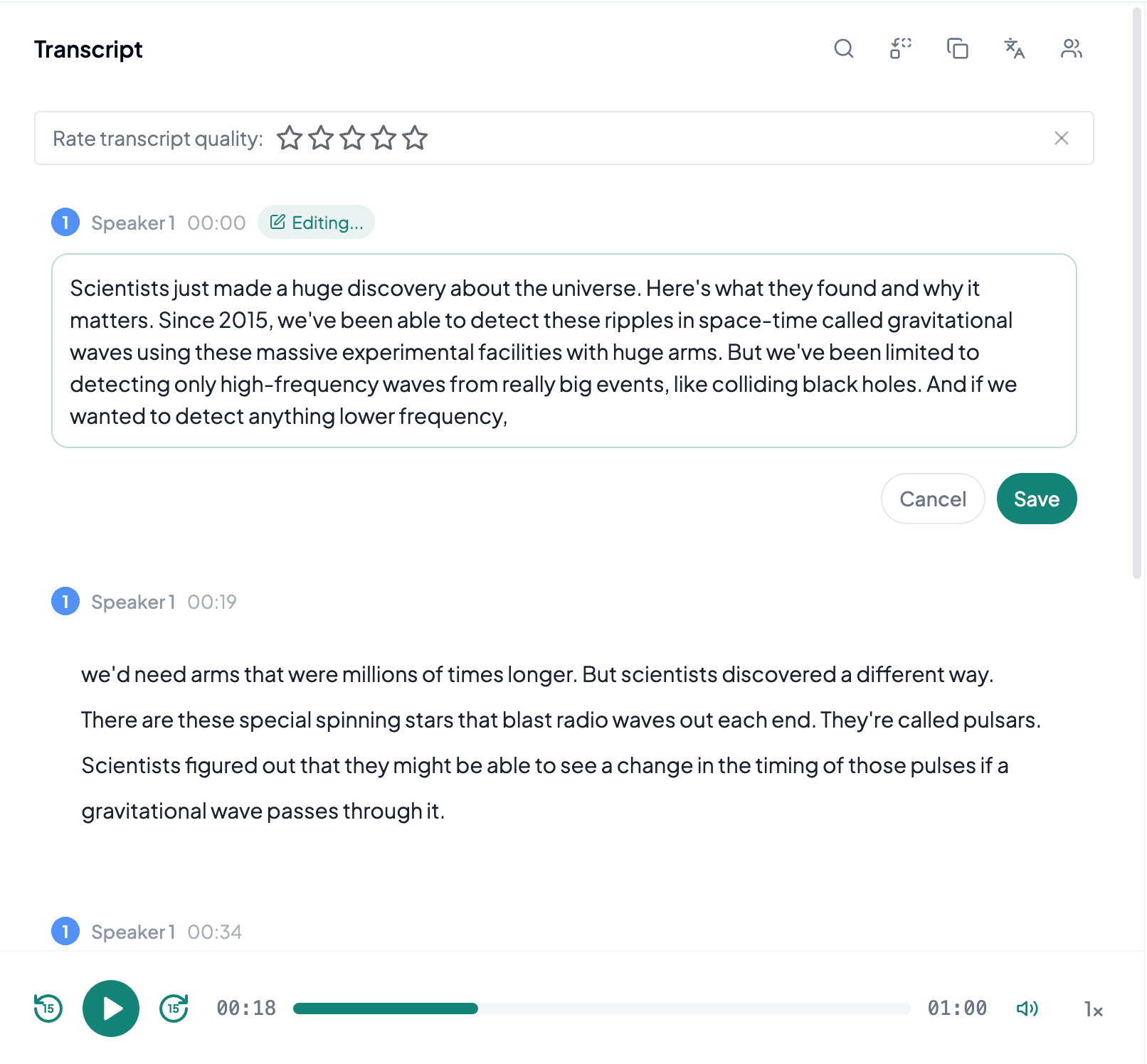
Transcribe Audio to Text You Can Edit and Search

Upload recordings, interviews, lectures, voice memos, or meetings and let the audio to text converter produce a clean transcript you can search, edit, and share.

Generate Summary and Mind Map

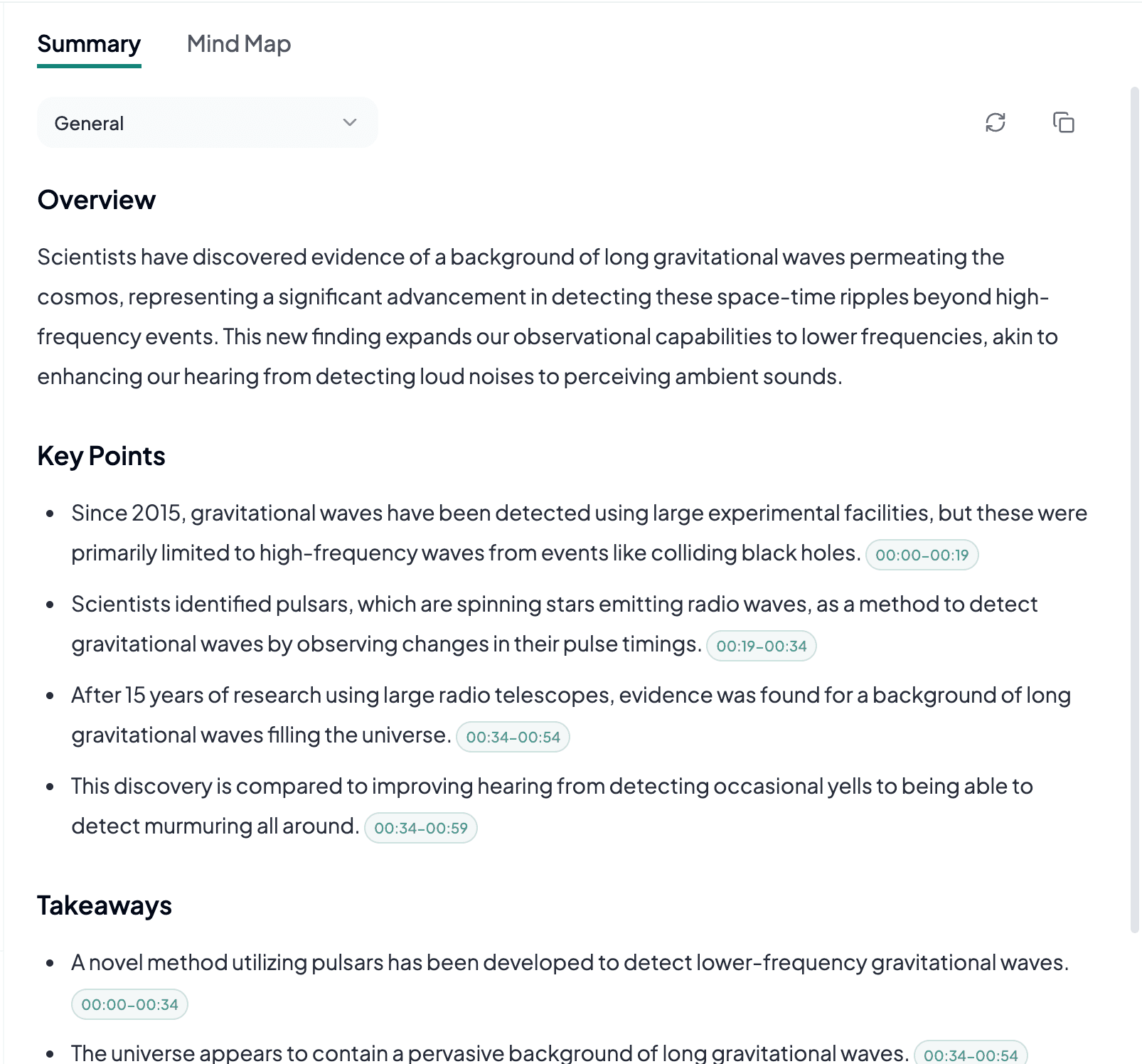
Summaries, Mind Maps, and Key Points

Turn long recordings into concise takeaways, visual mind maps, and focused notes for faster review.

Export and Share

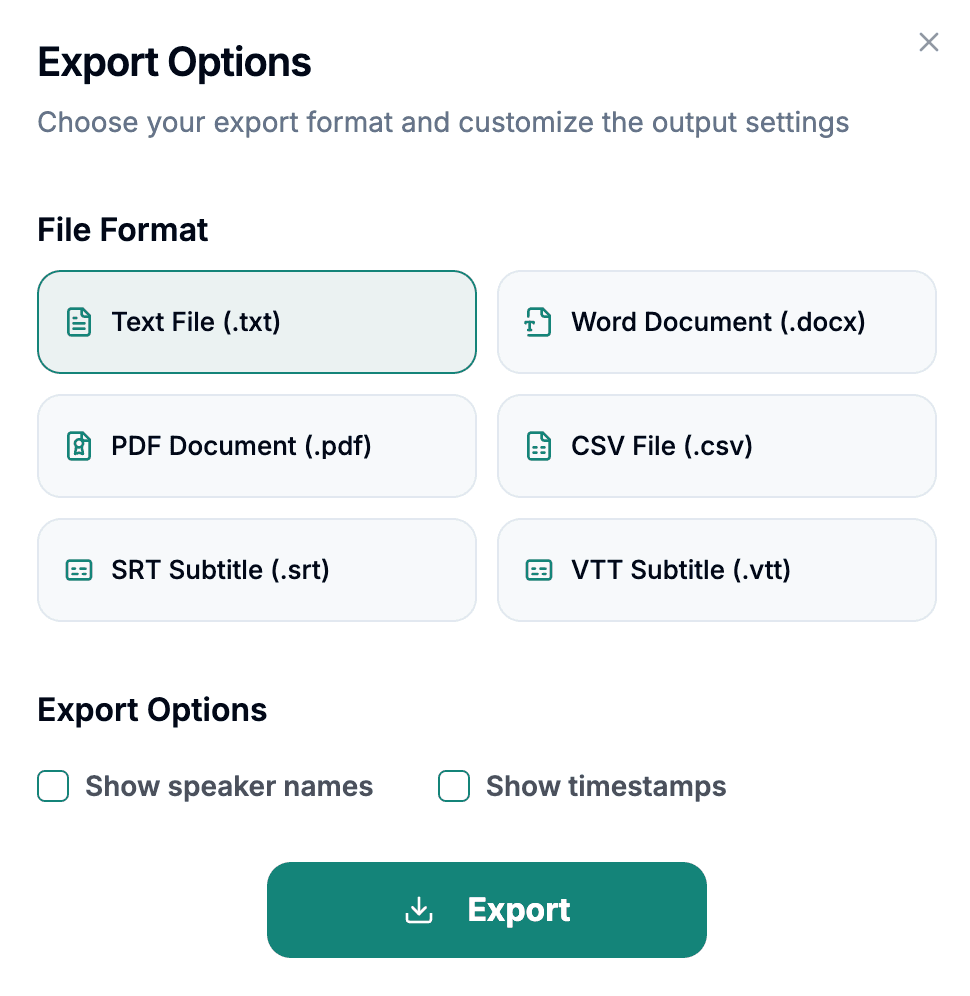
Export Transcripts in 6 Formats

Save your transcript as TXT, PDF, DOCX, SRT, VTT, CSV, including subtitle formats for caption workflows.

Ways to Use Audio Transcription

Converting audio to text makes spoken information easier to search, quote, review, and reuse. The best audio to text workflow depends on what was recorded and what you need to create from the transcript.

Meetings and Interviews

Convert meeting audio to text and keep a written reference for decisions, follow-up tasks, research quotes, and stakeholder notes. A searchable transcript helps you revisit the exact wording without replaying an entire call, while speaker-aware editing makes it easier to separate questions, answers, and action items before sharing the result.

Lectures and Research

Transcribe audio to text from classes, seminars, field recordings, and research interviews to build material that can be highlighted and organized. Students can build study notes from important passages, and researchers can locate recurring terms or compare responses across sessions while keeping the original recording available for context.

Podcasts and Content Creation

Turn podcast audio to text and create an editable source for show notes, articles, quotations, captions, newsletters, and social posts. Instead of starting every derivative asset from a blank page, creators can work from the transcript, verify wording against the audio, and export subtitle files when the same recording is published as video.

Voice Notes and Recorded Updates

Use voice to text to make phone memos, browser recordings, team updates, and spoken drafts easier to act on. Speech to text can turn an informal recording into a checklist, document outline, project update, or searchable archive, especially when typing is inconvenient or the idea is easier to explain aloud.

Choose the Right Audio Format for Transcription

The file extension tells you something about how audio was stored, but recording quality matters more for audio to text conversion than the name alone. Use the guide below to understand where common formats come from and what to check before you convert audio to text.

Common Compressed Audio

MP3, M4A, and AAC are widely used for podcasts, voice recorders, mobile devices, and downloaded audio. Their smaller files are convenient to move and upload. If speech sounds clear in normal playback, keep the original file for audio to text conversion rather than repeatedly converting it and introducing another lossy encoding step.

Lossless and Production Audio

WAV and FLAC are common when preserving source quality is important. They retain more detail than heavily compressed copies, which helps speech to text accuracy for archival recordings, studio interviews, and editing workflows. WAV files may be large, while FLAC provides lossless compression without discarding the recorded signal.

Browser and Open Media Formats

WEBM, WEBA, OGG, OGA, and OPUS often come from browsers, web applications, open-source tools, or real-time communication systems. Because these extensions may wrap different codecs, play the complete file first and confirm that the expected audio track is present before you transcribe audio to text.

Phone and Speech Recordings

AMR and AWB were designed around spoken voice and are frequently associated with phones, call systems, and older recorders. They can be perfectly usable for audio to text conversion, but narrow bandwidth, aggressive noise suppression, or a distant caller may remove details that software cannot restore later.

Broadcast, Container, and Legacy Audio

MP2, MKA, and WMA appear in broadcast archives, Matroska workflows, Windows applications, and older media libraries. Check for multiple tracks, unexpected language channels, or files that were copied from legacy systems. Uploading the original track usually gives the audio to text converter more useful speech information than a quick low-quality conversion.

Prepare Audio for a Cleaner Transcript

Speech to text works from the audio that is actually present in the recording. A few checks before you convert audio to text can save more time than correcting an avoidable problem after processing.

Listen to the Difficult Sections

Sample the beginning, middle, and end with headphones. Check whether voices remain audible, whether a microphone drops out, and whether music or machinery covers important words. If you cannot understand a passage while listening carefully, mark it for review instead of expecting a format conversion to recreate missing detail.

Use the Original Recording

Prefer the earliest complete file you have. Messaging apps, editing tools, and repeated exports may reduce bitrate, merge channels, or cut quiet speech. Renaming an extension does not change the codec, and transcoding a damaged or low-quality copy cannot recover information that has already been discarded.

Confirm Language and Speakers

Choose the spoken language that matches the recording and review the result when speakers overlap, use specialized names, or switch languages. Clear turn-taking generally produces easier-to-edit speech to text output than several people talking at once, even when the source file itself is high quality.

Export for the Next Step

Use TXT, DOCX, or PDF for reading and documentation; choose SRT or VTT when timing is needed for captions; use CSV when a structured table fits the workflow. After the audio to text conversion, keep the original audio until names, numbers, quotations, and other important details have been checked against the recording.

Start Transcribing for Free

Convert audio to text with free credits. Upgrade when you need longer audio files or more transcription time.

Free to Start

Upload files or paste supported links and generate transcripts quickly.

More Transcription Time

Upgrade when you need larger workloads, longer recordings, or more monthly transcription minutes.

Export Options

Download transcripts as TXT, PDF, DOCX, SRT, VTT, CSV for notes, subtitles, captions, or documentation.

Frequently Asked Questions

Use the clearest original recording you have, confirm the spoken language, and listen for distant speakers, heavy noise, clipping, or overlapping voices. Speech to text accuracy depends on the source audio, and converting the file format cannot restore speech that was not captured clearly.

Yes. Speech to text, voice to text, and audio to text conversion all describe the same process: AI listens to recorded speech and turns it into written words. This converter focuses on uploaded audio files, so any recording that contains speech can be transcribed online without installing software.

Usually no. The audio to text converter accepts 15 audio formats directly, so if the original file plays completely, uploading it as-is avoids an unnecessary conversion that could increase size or introduce additional compression.

After you convert audio to text, use TXT, DOCX, or PDF for reading and documentation, SRT or VTT for timed captions, and CSV when you need a structured table for review or another workflow.

Yes. You can start a transcription from this page and create a readable transcript before exporting or saving it in your account.

This page supports AAC, AMR, AWB, FLAC, M4A, MKA, MP2, MP3, OGA, OGG, OPUS, WAV, WEBA, WEBM, WMA. You can export finished transcripts as TXT, PDF, DOCX, SRT, VTT, CSV.

Yes. After transcription, export subtitle-ready files in SRT or VTT alongside TXT, PDF, DOCX, and CSV.

Yes. You can create summaries, key points, and mind maps after the transcript is generated.

Yes. The uploader is built for large audio and video files and shows progress while your file is prepared for transcription.