
AAC to Text Converter

Upload an AAC recording and turn its spoken content into editable text for notes, documentation, or captions.

Drag files here

Tap to browse your files

Supported formats include 3GP, AAC, AMR, AWB, FLAC, M4A, MKA, MKV, MOV, MP2, MP3, MP4, MPG, OGA, OGG, OPUS, TS, WAV, WEBA, WEBM, WMA, WMV.

By using Audio To Text Converter, you agree to our Terms of Service and Privacy Policy.

How to Convert AAC to Text in 3 Simple Steps

Add an AAC recording, review the AI transcript, and export the text in the format your workflow needs.

01

Upload Your AAC File

Choose the original .aac file when possible, confirm that speech plays clearly, and upload it from the audio tab.

02

Start AI Transcription

AI processes the spoken content and creates an accurate, readable transcript.

03

Export Your Transcript

Download the transcript as TXT, PDF, DOCX, SRT, VTT, CSV, or use it for summaries, captions, and searchable notes.

Audio & Video Transcription

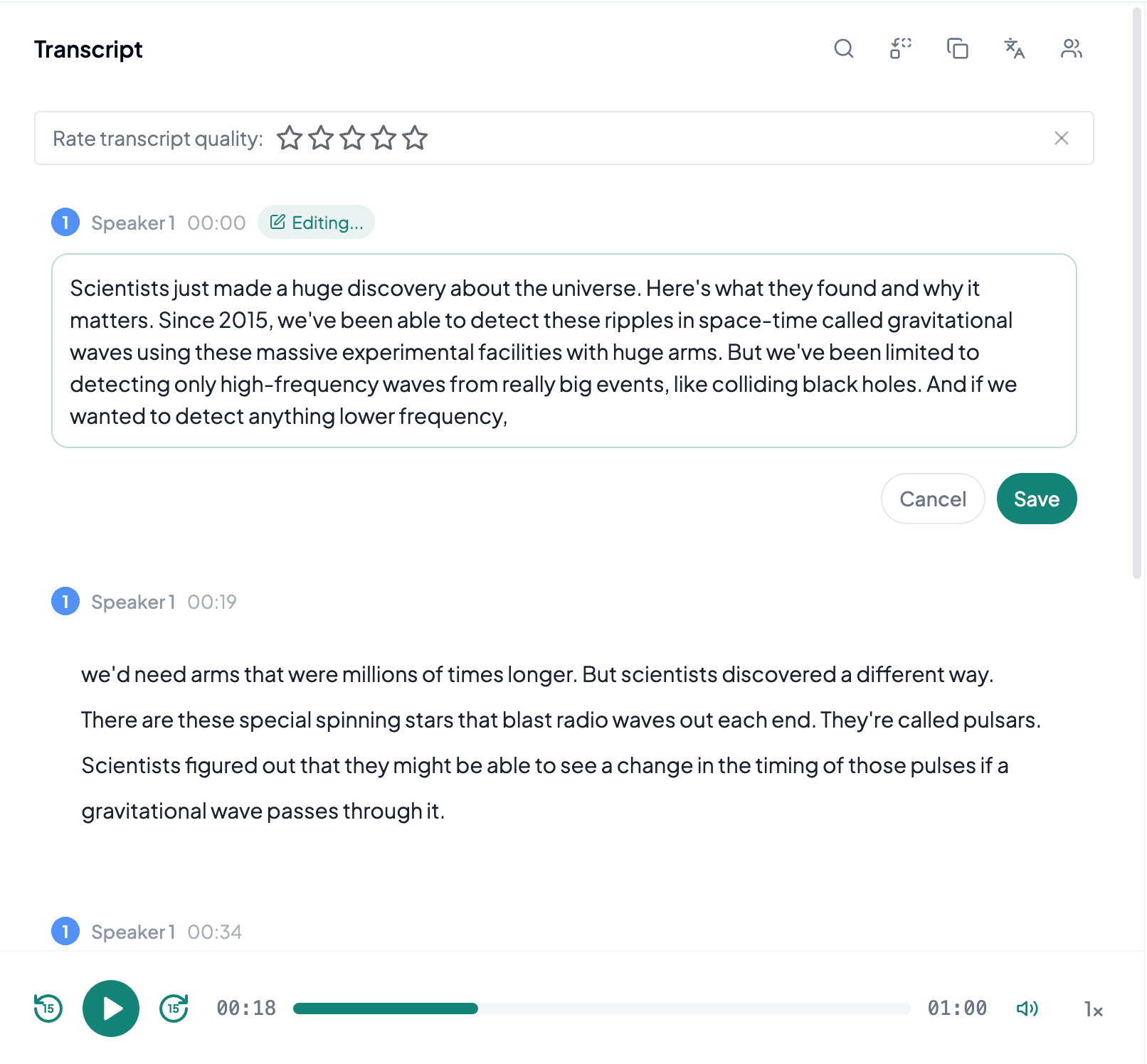
Transcribe Compressed AAC Recordings

Convert spoken content stored in AAC into searchable text while keeping the original recording available for names, numbers, and quotation checks.

Generate Summary and Mind Map

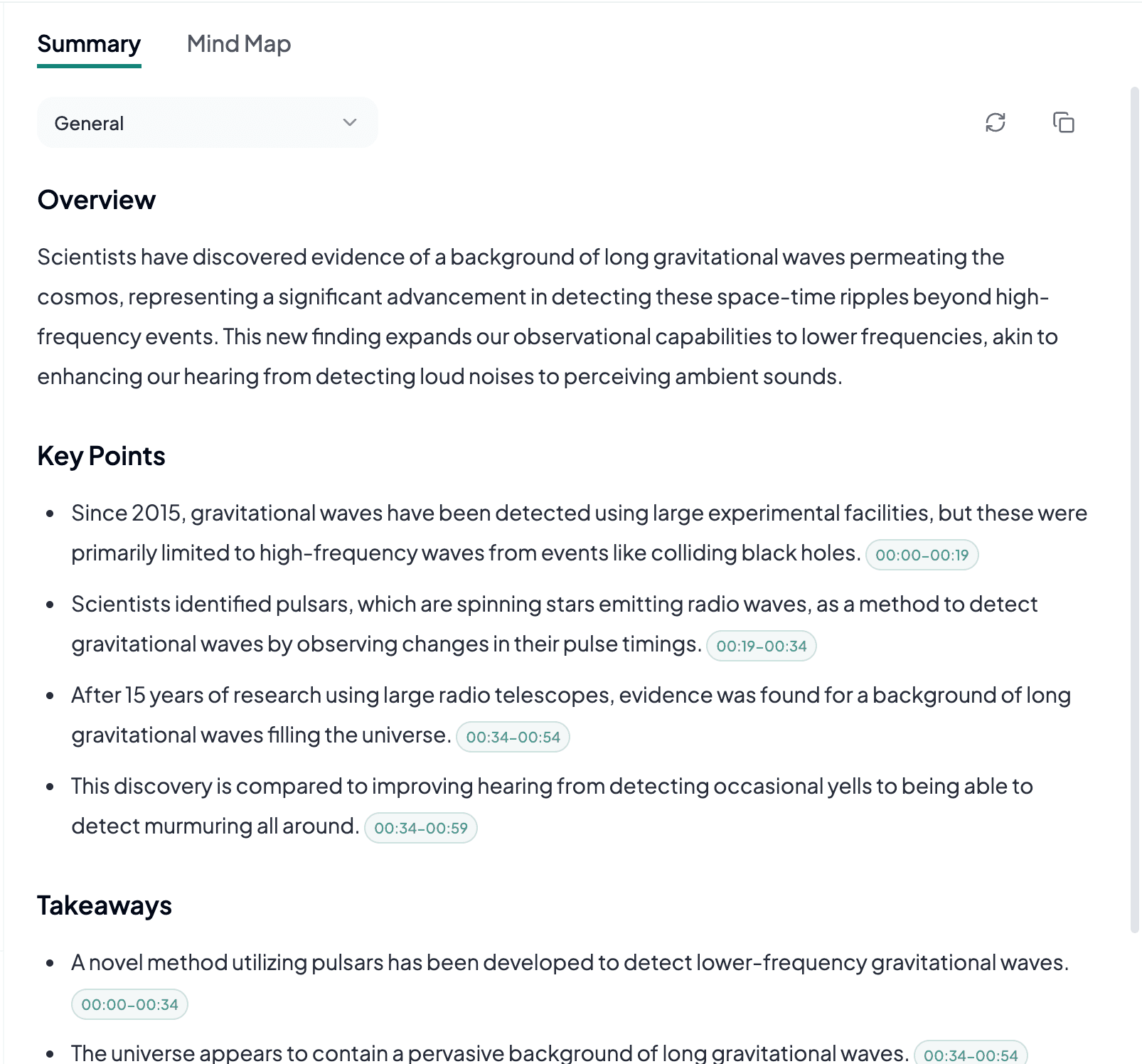
Summaries, Mind Maps, and Key Points

Turn long recordings into concise takeaways, visual mind maps, and focused notes for faster review.

Export and Share

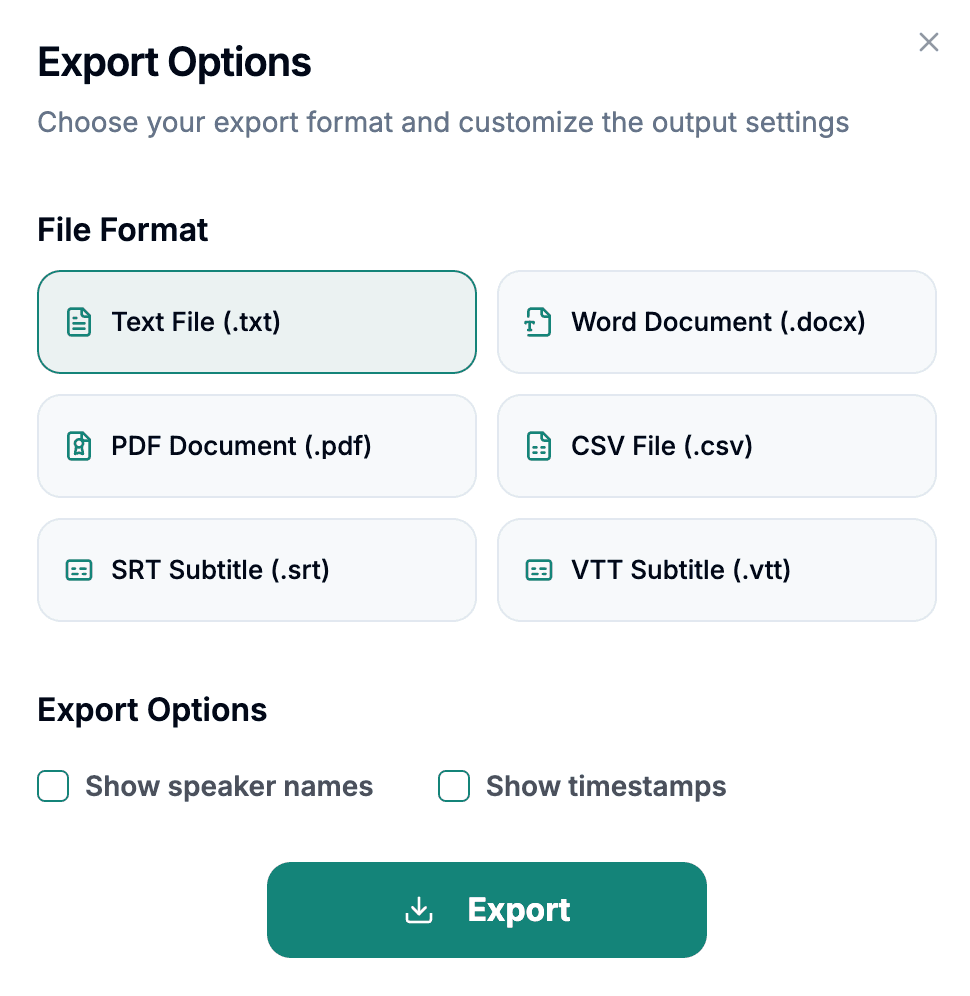
Export Transcripts in 6 Formats

Save your transcript as TXT, PDF, DOCX, SRT, VTT, CSV, including subtitle formats for caption workflows.

What to Know About AAC Audio

AAC, short for Advanced Audio Coding, is a lossy audio codec used by mobile devices, recorders, streaming workflows, and many media applications. A raw AAC file may use an .aac extension, while the same codec can also appear inside containers such as M4A or MP4. The extension therefore describes only part of the recording. For transcription, the important questions are whether the expected audio track is present, speech is intelligible, and compression has not removed too much detail.

AAC can provide good perceived quality at relatively modest bitrates, which makes it practical for long spoken recordings. However, a file optimized aggressively for size may soften consonants, introduce metallic artifacts, or make quiet speakers harder to distinguish from background sound. Converting AAC to another lossy format before transcription does not improve the original signal. Uploading the earliest complete copy normally preserves the most useful information.

When AAC to Text Is Useful

AAC to text is a practical choice when an application or device already created the recording in AAC and you want to keep that original workflow.

Mobile Voice Recordings

Phones and portable recorders may save compressed speech as AAC. A transcript turns those files into searchable notes, but it is still worth checking notification sounds, microphone handling noise, and distant speakers before relying on exact wording.

Compressed Interviews

AAC keeps interview files manageable for transfer and storage. Use the transcript to organize questions, quotations, and themes, then verify important statements against the recording when speakers overlap or talk quietly.

Audio Prepared for Online Delivery

Publishers and media teams often encounter AAC in distribution pipelines. Transcription can provide show notes, captions, or an editorial draft without requiring another conversion solely to obtain text.

Prepare a AAC File for Transcription

Treat AAC as a compressed source: preserve the original, inspect playback, and focus corrections on places where encoding or recording conditions obscure speech.

Avoid Re-encoding

Do not convert AAC to MP3 just because MP3 is more familiar. Another lossy pass can add artifacts without restoring any missing detail.

Check the Entire Duration

Confirm that playback reaches the expected ending and does not switch tracks or become silent after an interrupted mobile recording.

Review Proper Nouns

Names, acronyms, and quiet final syllables deserve manual review because compression and natural speech can make them ambiguous.

Frequently Asked Questions

Not exactly. AAC is an audio codec, while M4A is a file container that often carries AAC audio but can also contain other audio encodings.

Usually no. If the AAC file plays correctly, uploading the original avoids an unnecessary lossy conversion and preserves the available speech detail.

Yes. You can start a transcription from this page and create a readable transcript before exporting or saving it in your account.

This page supports AAC, AMR, AWB, FLAC, M4A, MKA, MP2, MP3, OGA, OGG, OPUS, WAV, WEBA, WEBM, WMA. You can export finished transcripts as TXT, PDF, DOCX, SRT, VTT, CSV.

Yes. After transcription, export subtitle-ready files in SRT or VTT alongside TXT, PDF, DOCX, and CSV.

Yes. You can create summaries, key points, and mind maps after the transcript is generated.

Yes. The uploader is built for large audio and video files and shows progress while your file is prepared for transcription.