
FLAC to Text Converter

Upload a lossless FLAC recording and create editable text for archives, interviews, research, or production notes.

Drag files here

Tap to browse your files

Supported formats include 3GP, AAC, AMR, AWB, FLAC, M4A, MKA, MKV, MOV, MP2, MP3, MP4, MPG, OGA, OGG, OPUS, TS, WAV, WEBA, WEBM, WMA, WMV.

By using Audio To Text Converter, you agree to our Terms of Service and Privacy Policy.

How to Convert FLAC to Text in 3 Simple Steps

Add the original FLAC recording, transcribe its spoken content, and export a document or subtitle file for the next step.

01

Upload Your FLAC File

Select the complete .flac file, confirm the intended recording or channel is audible, and upload it from the audio tab.

02

Start AI Transcription

AI processes the spoken content and creates an accurate, readable transcript.

03

Export Your Transcript

Download the transcript as TXT, PDF, DOCX, SRT, VTT, CSV, or use it for summaries, captions, and searchable notes.

Audio & Video Transcription

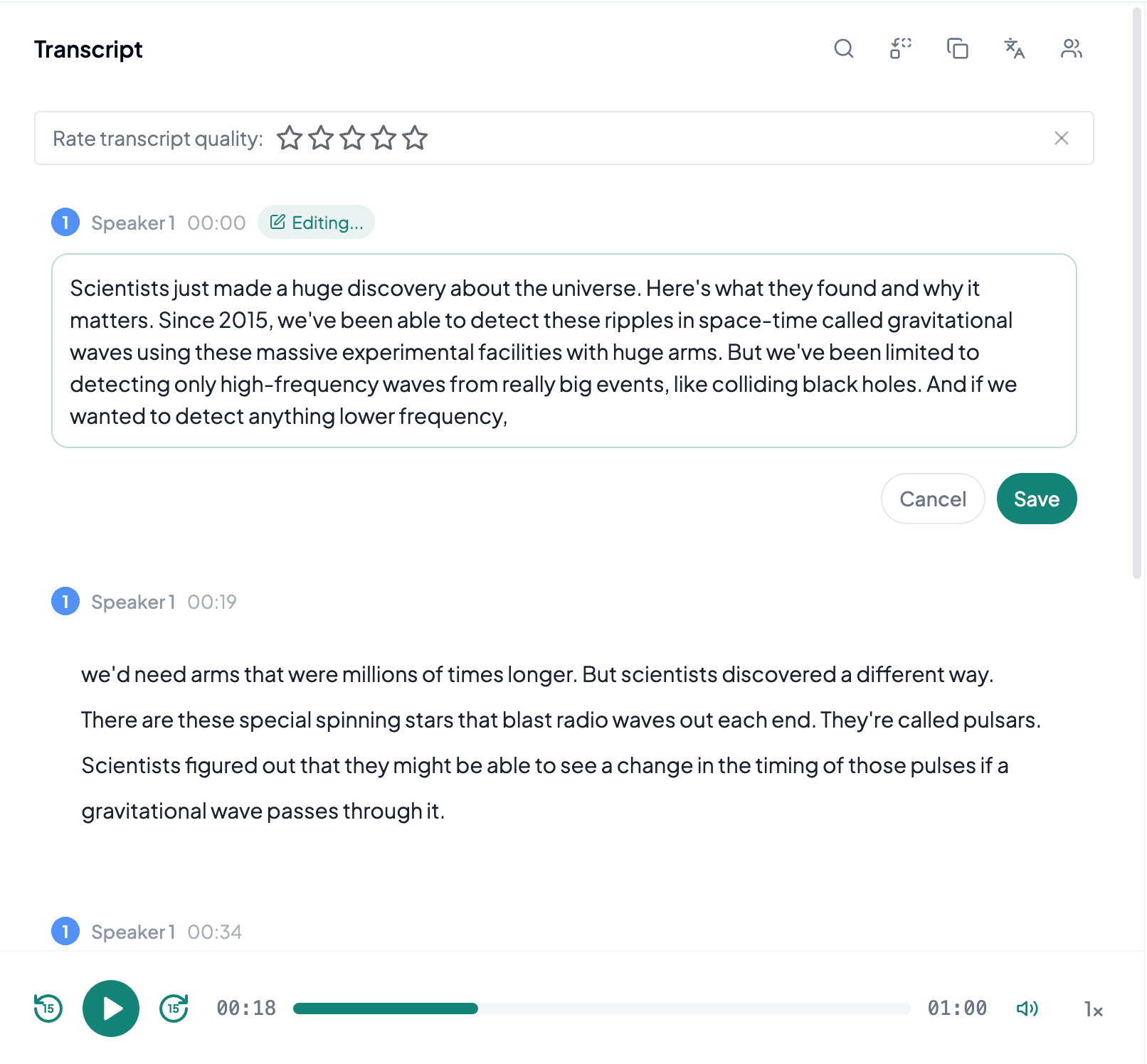
Transcribe Lossless FLAC Audio

Create searchable text from FLAC recordings without making a lower-quality listening copy solely for transcription.

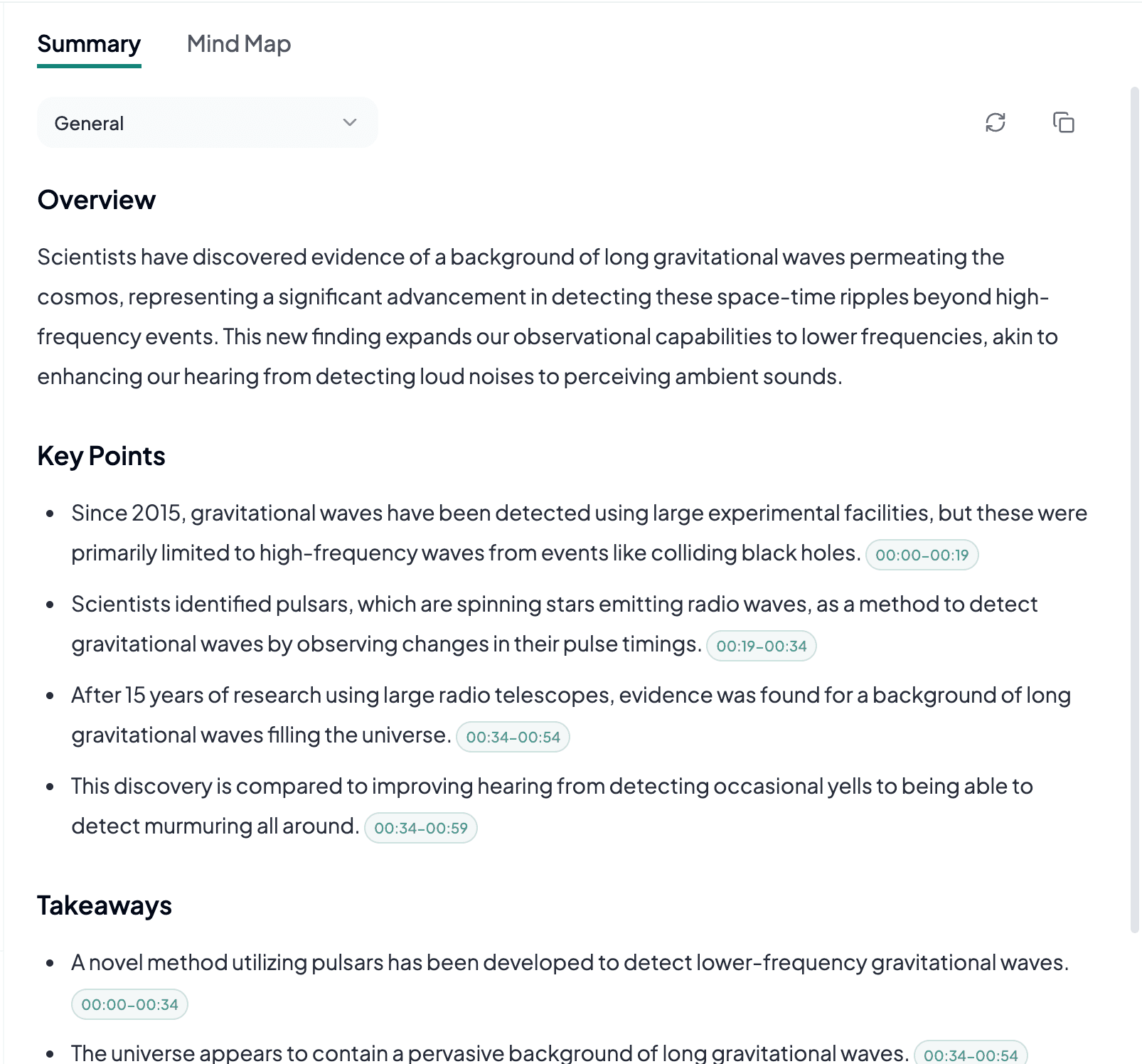
Generate Summary and Mind Map

Summaries, Mind Maps, and Key Points

Turn long recordings into concise takeaways, visual mind maps, and focused notes for faster review.

Export and Share

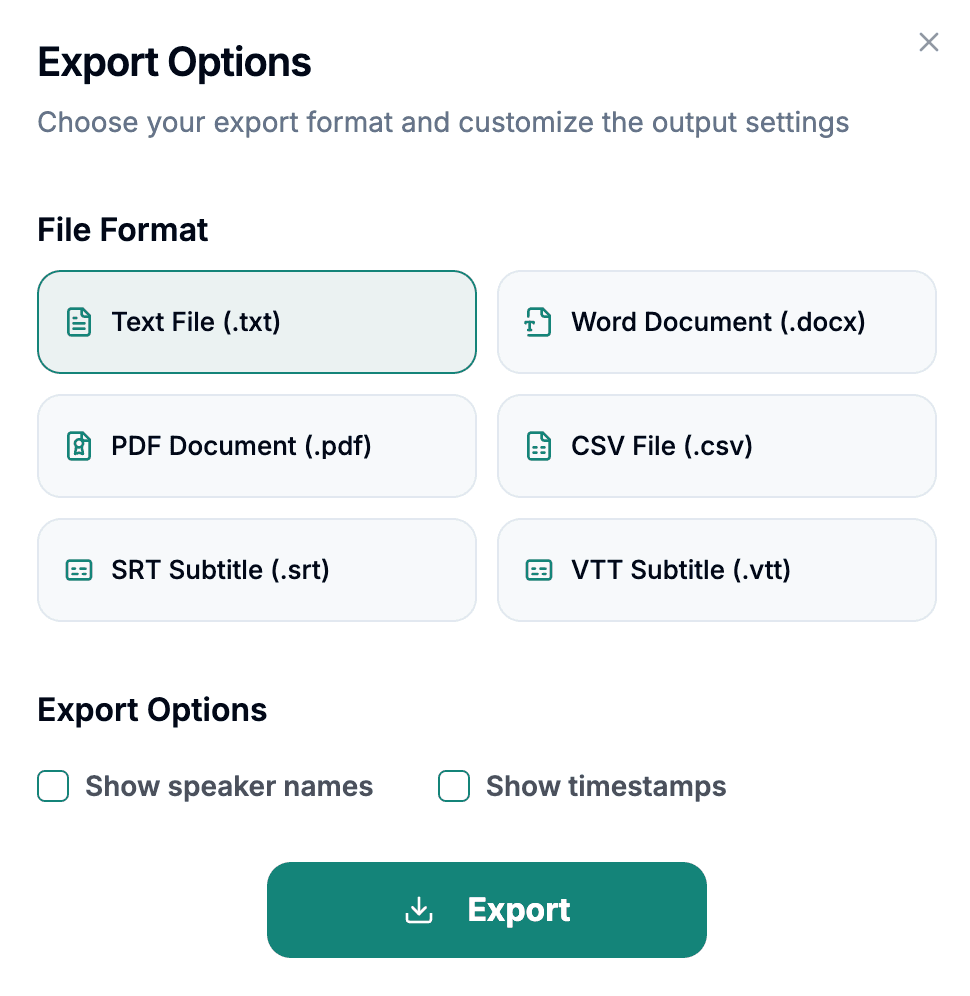
Export Transcripts in 6 Formats

Save your transcript as TXT, PDF, DOCX, SRT, VTT, CSV, including subtitle formats for caption workflows.

What to Know About FLAC Audio

FLAC stands for Free Lossless Audio Codec. Unlike lossy codecs, it reduces file size without discarding decoded audio information, making it common in archives, music libraries, production handoffs, and high-quality field recording workflows. Lossless storage is useful for transcription because it avoids adding compression artifacts to consonants, quiet passages, and room tone. It does not guarantee clear speech, however; a distant microphone or noisy room remains difficult even in a technically perfect FLAC file.

FLAC files can contain high sample rates, long durations, metadata, and more than one channel. Those properties may increase file size but are not reasons to convert the source automatically. First confirm that the correct program, interview, or language track is present and that voices are balanced across channels. If an archive includes music-only material or extended silence, separating the speech segment can make review more focused, provided the original master is preserved.

When FLAC to Text Is Useful

FLAC to text works well when the source was kept lossless for quality, preservation, or later production work.

Oral History and Research Archives

Lossless files are common when interviews need long-term preservation. A transcript improves discovery and quotation workflows, while researchers can return to the FLAC master to verify dialect, emphasis, names, and uncertain passages.

Studio and Podcast Masters

Production teams may retain a FLAC master after editing. Transcription can generate show notes, articles, captions, and a searchable record without introducing another audio export before the editorial work begins.

High-quality Lectures or Performances

When speech was captured with good microphones, FLAC preserves the available detail. Sections dominated by music, applause, reverberation, or audience questions still need contextual review despite the lossless codec.

Prepare a FLAC File for Transcription

Use FLAC's preserved detail to your advantage by selecting the right track and keeping the archival source intact.

Inspect Channels

Check whether speech is split across stereo channels or whether one channel contains a cleaner microphone feed than the other.

Trim Copies, Not Masters

If only part of a long archive contains speech, work from a derived copy and keep the original FLAC unchanged for future verification.

Do Not Down-convert for Convenience

There is usually no need to make an MP3 first. Uploading the playable FLAC avoids an extra lossy step and keeps the best available source.

Frequently Asked Questions

FLAC avoids lossy encoding artifacts, but accuracy still depends on microphone placement, noise, speaker clarity, overlap, and language.

If the FLAC file uploads and plays correctly, keeping the lossless source avoids unnecessary quality loss. Convert only when a separate workflow specifically requires it.

Yes. You can start a transcription from this page and create a readable transcript before exporting or saving it in your account.

This page supports AAC, AMR, AWB, FLAC, M4A, MKA, MP2, MP3, OGA, OGG, OPUS, WAV, WEBA, WEBM, WMA. You can export finished transcripts as TXT, PDF, DOCX, SRT, VTT, CSV.

Yes. After transcription, export subtitle-ready files in SRT or VTT alongside TXT, PDF, DOCX, and CSV.

Yes. You can create summaries, key points, and mind maps after the transcript is generated.

Yes. The uploader is built for large audio and video files and shows progress while your file is prepared for transcription.