
Browser Voice Recorders
Turn dictated drafts, research notes, or quick microphone captures into editable text. Confirm that the browser used the intended headset or built-in microphone before processing important material.
Upload a WEBA recording from a browser or web application and turn its spoken content into searchable, editable text.
or click to browse your computerTap to browse your files
Supported formats include 3GP, AAC, AMR, AWB, FLAC, M4A, MKA, MKV, MOV, MP2, MP3, MP4, MPG, OGA, OGG, OPUS, TS, WAV, WEBA, WEBM, WMA, WMV.
By using Audio To Text Converter, you agree to our Terms of Service and Privacy Policy.
Add the original WEBA recording, verify the captured session, generate the transcript, and export the reviewed text.
Choose the .weba file saved by the browser or web app, confirm its duration and microphone audio, and upload it from the audio tab.
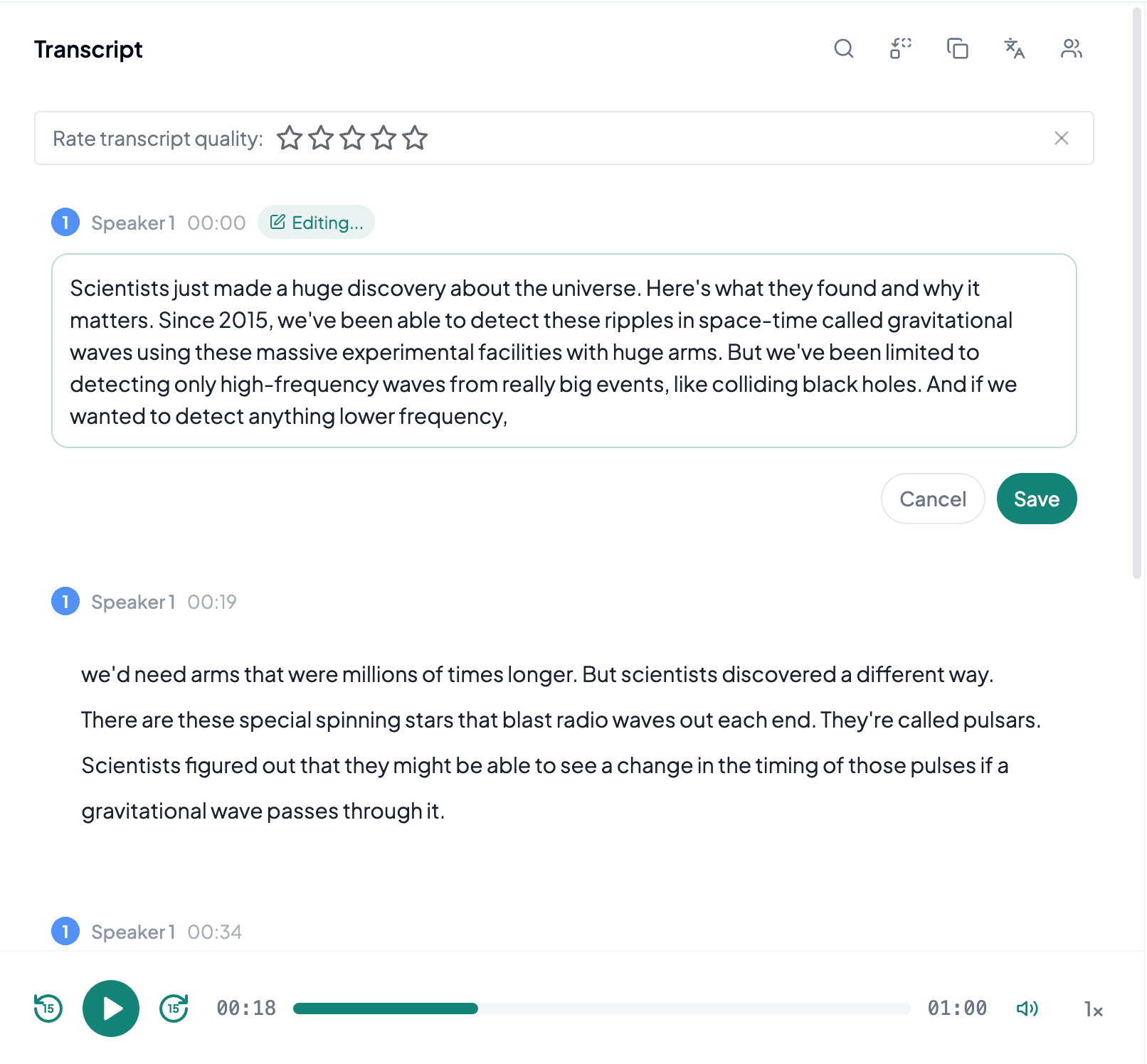
AI processes the spoken content and creates an accurate, readable transcript.
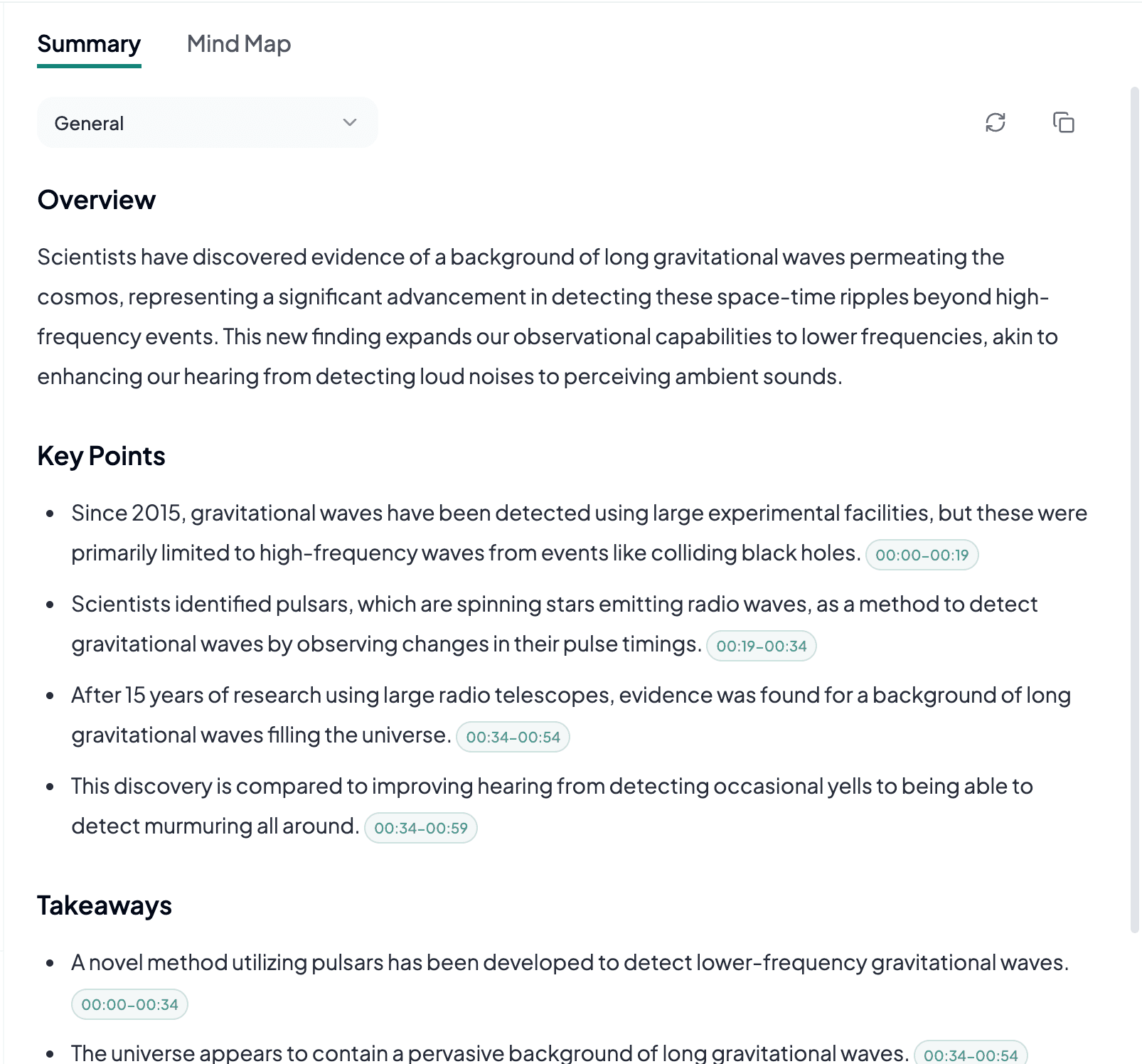
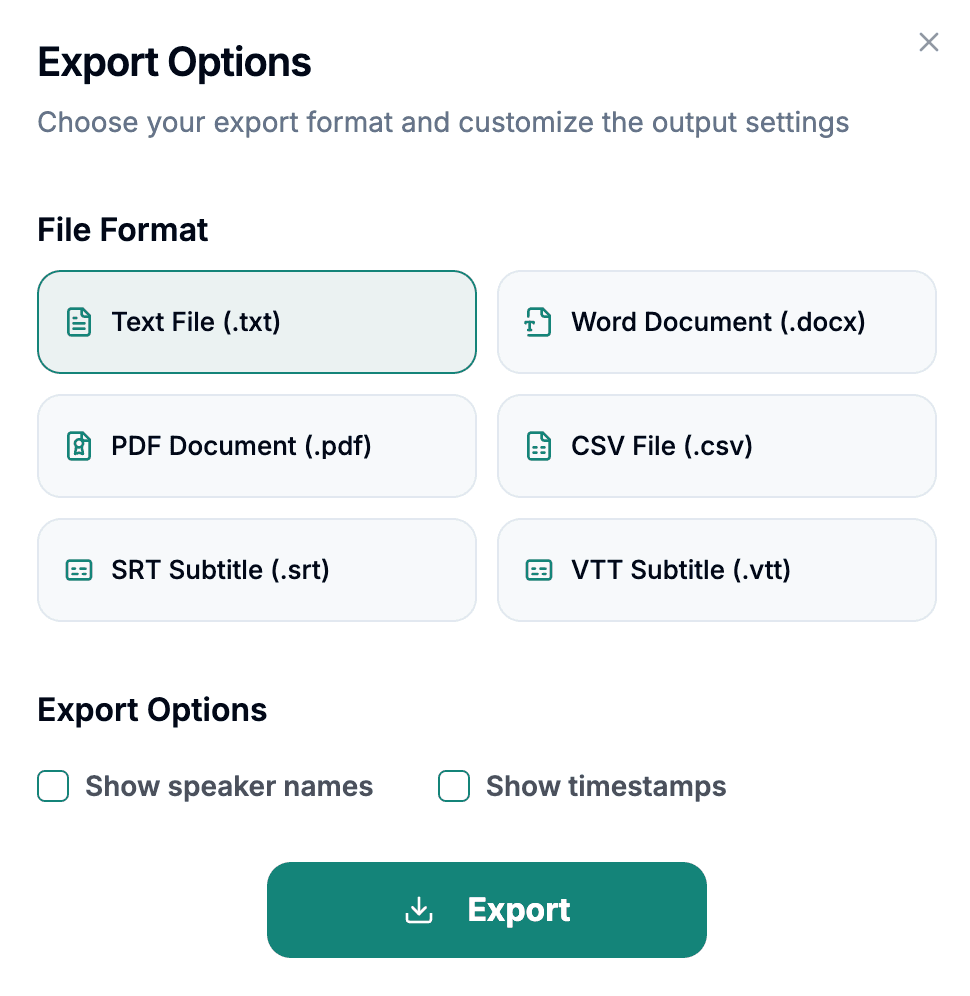
Download the transcript as TXT, PDF, DOCX, SRT, VTT, CSV, or use it for summaries, captions, and searchable notes.
Explore other audio formats supported by Audio To Text Converter.
WEBA is an audio-oriented extension commonly used for WebM container files created by browsers and web applications. It often contains Opus or Vorbis audio and may be produced by microphone recorders, meeting tools, voice-message interfaces, or downloaded web assets. The extension helps signal that the WebM file is audio-only, but applications do not all use it consistently. Playback is the best way to confirm what the file actually contains.
Browser recordings have their own failure modes. A tab can lose microphone permission, a laptop can switch input devices, the computer can sleep, or the recording can stop before metadata is finalized. A valid-looking WEBA may therefore be silent, shortened, or divided into segments. Before transcription, check the beginning, a middle section, and the ending. Converting the file does not recover speech that the browser never captured.
WEBA to text fits workflows where spoken input was collected directly on the web and needs to become a document outside the original application.
Turn dictated drafts, research notes, or quick microphone captures into editable text. Confirm that the browser used the intended headset or built-in microphone before processing important material.
Some online tools save meeting or participant audio as WEBA. A transcript supports follow-up and search, while dropouts and automatic device switching require targeted review.
Web forms may collect spoken responses in compact audio files. Text makes themes easier to compare, provided each clip remains linked to its session identifier and consent context.
The main WEBA check is session completeness: confirm that the browser captured the intended microphone for the full recording.
Play near the final timestamp because interrupted uploads or unclosed recording sessions can produce a file that stops earlier than expected.
Listen for distance and room echo that suggest the browser selected a laptop microphone instead of the headset used during the session.
Preserve filenames, dates, or response identifiers so the exported transcript can be matched to the correct web recording later.